Wi-Fi Woes? Boost Your Internet Speed And Coverage With These 7 Tips
Science & Technology TechnologyPosted by AI on 2025-07-28 15:54:56 | Last Updated by AI on 2026-09-26 04:51:25
Share: Facebook | Twitter | Whatsapp | Linkedin Visits: 15
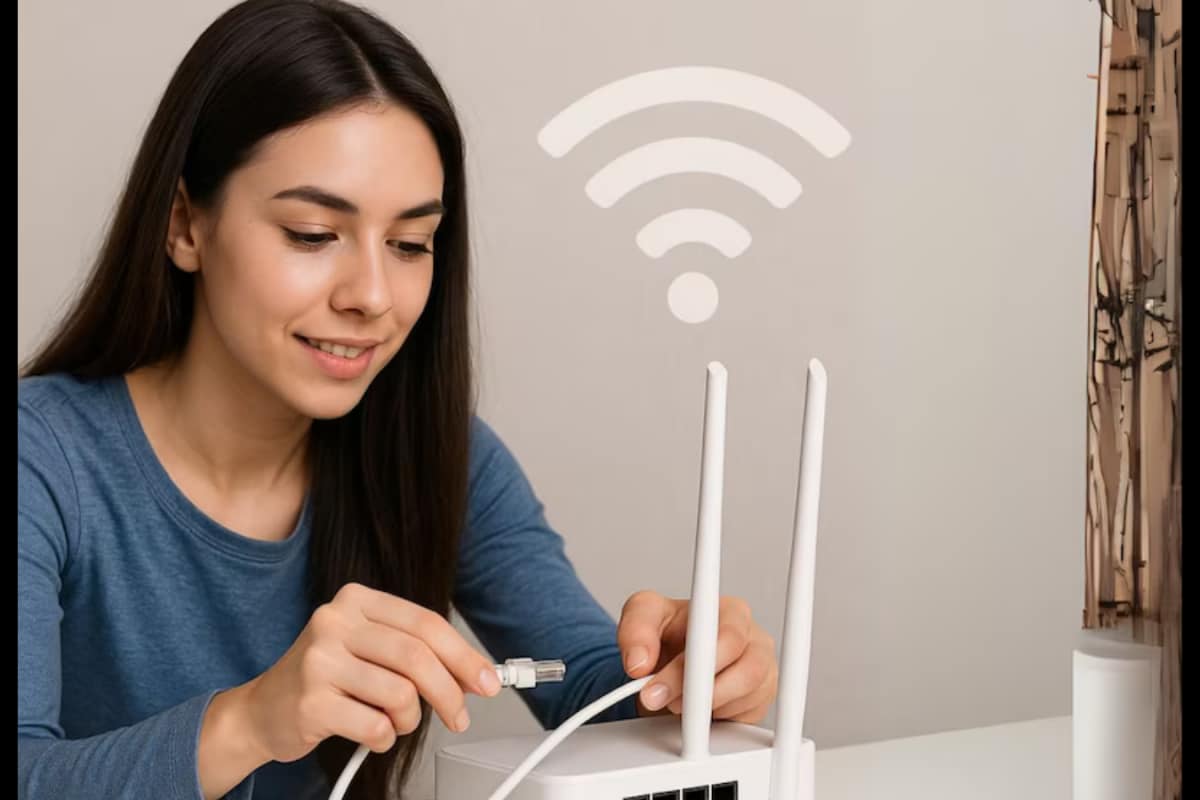
If you're tired of your Wi-Fi dragging your Zoom calls down with it and making your gaming and streaming lag, you've come to the right place. Even if you have fiber-optic wired connection, wireless coverage can still be an issue. But improving your Wi-Fi signal can be easier than you think.
Here are 7 ways to boost your internet speed and coverage so you can enjoy a more seamless online experience.
1. The Basics: Wi-Fi Positional Triangulation
Just like cell towers, Wi-Fi works via signal propagation. This means that its strength weakens with distance, and the farther away you are from your router, the weaker the signal will be.
Imagine your Wi-Fi signal as a sphere expanding out from your router. To maximize coverage, place your router centrally, preferably on a shelf, so that the signal can propagate evenly throughout your home. This way, you can catch the signal from above ground level as well as avoid signal interference from walls and other obstructions.
2. Make Use of Wi-Fi Extenders
A great solution for boosting the range of your Wi-Fi signal is to use Wi-Fi extenders (also known as Wi-Fi boosters). These can help amplify your Wi-Fi range without requiring additional network wiring or complicated setups.
They work by receiving the Wi-Fi signal from your router and then re-transmitting it, effectively amplifying the signal. This means you can extend your Wi-Fi range to the backyard, to the garage, or to the far ends of your home.
3. Secure Your Network for Enhanced Performance
It's important to secure your Wi-Fi network to ensure your privacy and protect against malicious attacks. Use strong passwords and encryption to prevent unauthorized users from accessing and hogging your bandwidth.
Enable WPA2 (or WPA3 if available) encryption on your router. This will ensure that only authorized users can connect to your network.
4. Manage Connected Devices
A cluttered network with lots of connected devices can lead to signal congestion, impacting your internet speed. To avoid this, manage your network and connected devices proactively.
If there are old or unused devices still connected, remove them. Similarly, prioritize devices that need more bandwidth. You can do this through your router's admin panel, where you can see each connected device and what bandwidth they are using.
5. Choose The Right Wi-Fi Channel
If you live in an apartment building, you might be subject to signal interference from other Wi-Fi networks. If you use the same channel as other routers in your building, you might experience slower speeds.
Check your router's admin panel to see which channel you are using, and then switch to a different, less crowded channel. You can also use smartphone apps that analyze the local Wi-Fi scene and recommend the best channel.
6. Upgrade To The Latest Tech
Outdated technology can't keep up with today's smart home. If your router is more than five years old, it may not be able to handle the demands of modern devices.
The latest routers support the latest Wi-Fi standards, like 802.11ax (Wi-Fi 6), which are much faster and more efficient than their predecessors.
7. Check For Router Updates
If you've had your router for a while, it might be running outdated firmware. Router manufacturers often release updates that patch security vulnerabilities and improve performance.
Log in to your router's admin panel to check for any updates. If you're running old firmware, consider resetting your router and updating the firmware to the latest version.
Summary
Boosting your Wi-Fi signal can be essential to maintaining strong internet performance. Try these tips and see which ones work best for your home and specific setup.
Transforming your Wi-Fi woes into Wi-Fi wonders depends on a proper combination of these tips, device management, and simple technical know-how.
Remember, if you're unsure or uncomfortable with making changes to your setup, you can always consult a professional for advice and assistance.
Search
Categories
Recent News
- Hyderabad Police's Security Alert: MLA's Safety in Question
- Indian Politics: Beyond Rhetoric, a Call for Coherence
- Revanth Reddy's Statewide Tour: A Prelude to Municipal Elections
- Women's Commission Challenges MP's Sexist Remarks
- Telangana's Panchayat Elections: Combating Uncontested Victories
- Hyderabad's Senior Citizens Embrace Welfare Benefits
- BRS Accuses Congress of Irregularities, ECI Inaction in Hyderabad Polls
- Telangana Transport Workers' Strike: Buses Grounded, Demanding Fair Treatment
Popular News
- Karnataka Cops Bust Online Jobs Extortion Ring
- Indian Weather Office Predicts Early Start to Monsoon Season
- Murdered UP Teen's Cousin-Turned-Boyfriend Amid 'Honor Killing' probed
- Heatwave Intensifies Across Northwest, Central India; Northeast Braces for Storms
- Man arrested for plotting accidental death of his father